# PingZapper

Si tienes problemas de conexión con el servidor, Argmus se ralentiza o se congela, una posible solución podría ser el programa Pingzapper. Este programa cifra los datos del juego y los envía a través de su servidor, evitando los nodos problemáticos.

***

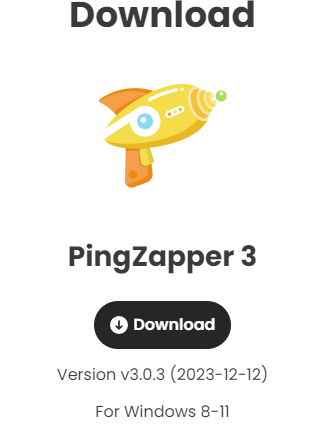
<p align="center"><strong>1. Ir al sitio web de</strong> <a href="https://pingzapper.com/download"><strong>Pingzapper</strong></a> <strong>y haga clic en Download.</strong></p>

<p align="center"><img src="https://798805090-files.gitbook.io/~/files/v0/b/gitbook-x-prod.appspot.com/o/spaces%2FrJDlp3lH955JOt7251Y5%2Fuploads%2FzouloIbxzgF90wNB5rqW%2Funknown.png?alt=media&#x26;token=131d7fb6-61e0-4f89-b564-38a9b916c36a" alt=""></p>

***

<p align="center"><strong>2. Extraer e instalar el Programa PingZapper.</strong></p>

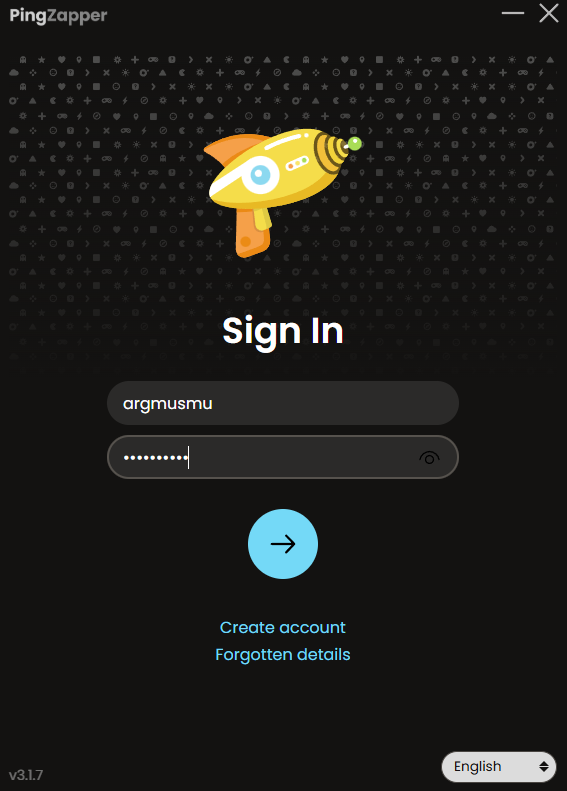
<p align="center"><strong>3. Abrir el Programa de PingZapper y en los datos de inicio de sesion coloca lo siguiente:</strong></p>

<p align="center"><mark style="color:orange;">Username: argmusmu</mark></p>

<p align="center"><mark style="color:orange;">Password: Asdasd123.</mark></p>

<figure><img src="https://798805090-files.gitbook.io/~/files/v0/b/gitbook-x-prod.appspot.com/o/spaces%2FrJDlp3lH955JOt7251Y5%2Fuploads%2FEwO5ACwStdmcyNKLb4qN%2Fimage.png?alt=media&#x26;token=4881da16-acf2-42de-8e73-b64230e0b0db" alt="" width="284"><figcaption></figcaption></figure>

***

<p align="center"><strong>4. Una vez logeado, hacer click en el boton "+´"</strong><br></p>

<p align="center"><img src="https://798805090-files.gitbook.io/~/files/v0/b/gitbook-x-prod.appspot.com/o/spaces%2FrJDlp3lH955JOt7251Y5%2Fuploads%2FpUd0JrYGs5G6jFYwApyC%2Funknown.jpeg?alt=media&#x26;token=19bffb62-f2cb-49f6-8fee-6b444e060e54" alt=""></p>

<p align="center"><img src="https://798805090-files.gitbook.io/~/files/v0/b/gitbook-x-prod.appspot.com/o/spaces%2FrJDlp3lH955JOt7251Y5%2Fuploads%2Fqpw8JovGoYFW7j77HwFe%2Funknown.jpeg?alt=media&#x26;token=5f48f756-5aa4-4f06-8519-e7ce895bda64" alt=""></p>

***

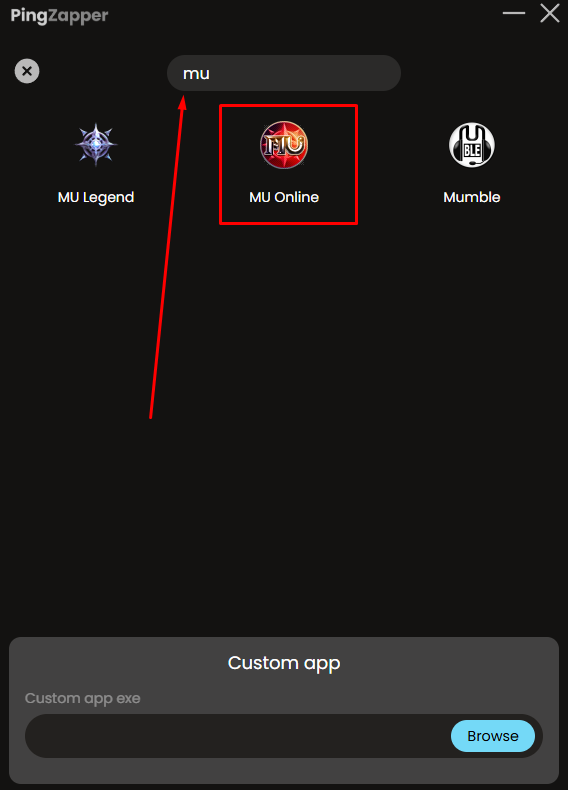
<p align="center"><strong>5. En la barra de busqueda escrobir "mu" y seleccionar Mu Online</strong></p>

<figure><img src="https://798805090-files.gitbook.io/~/files/v0/b/gitbook-x-prod.appspot.com/o/spaces%2FrJDlp3lH955JOt7251Y5%2Fuploads%2FkleiBBFoXEIccJ9R3XVL%2Fimage.png?alt=media&#x26;token=1b3a9dab-4cc4-4269-ae4a-97ae2ae6f952" alt="" width="426"><figcaption></figcaption></figure>

***

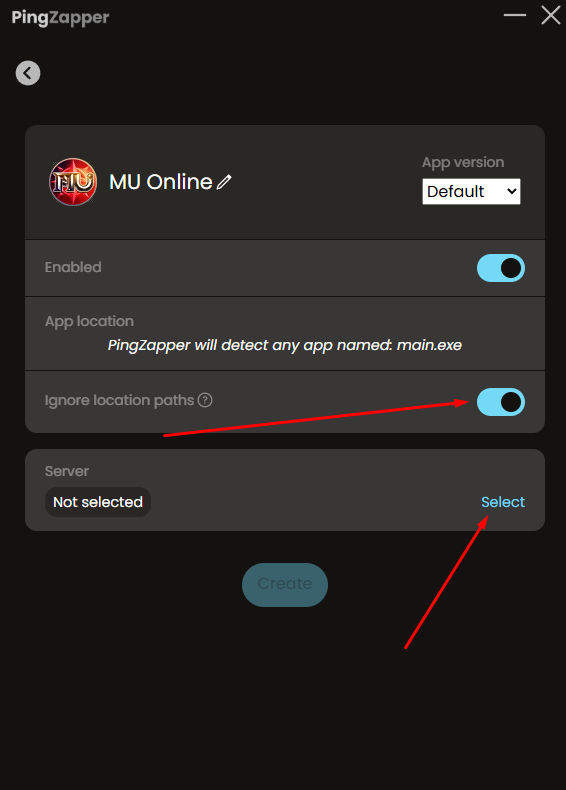
<p align="center"><strong>6.  Marcar la opcion "ignore location paths", seguido a esto darle en Server  > Select</strong></p>

<figure><img src="https://798805090-files.gitbook.io/~/files/v0/b/gitbook-x-prod.appspot.com/o/spaces%2FrJDlp3lH955JOt7251Y5%2Fuploads%2FK3I6NoWh0550KvbeKLIr%2Fimage.png?alt=media&#x26;token=a812e678-7c3b-411c-973b-cf6cdb356e70" alt="" width="425"><figcaption></figcaption></figure>

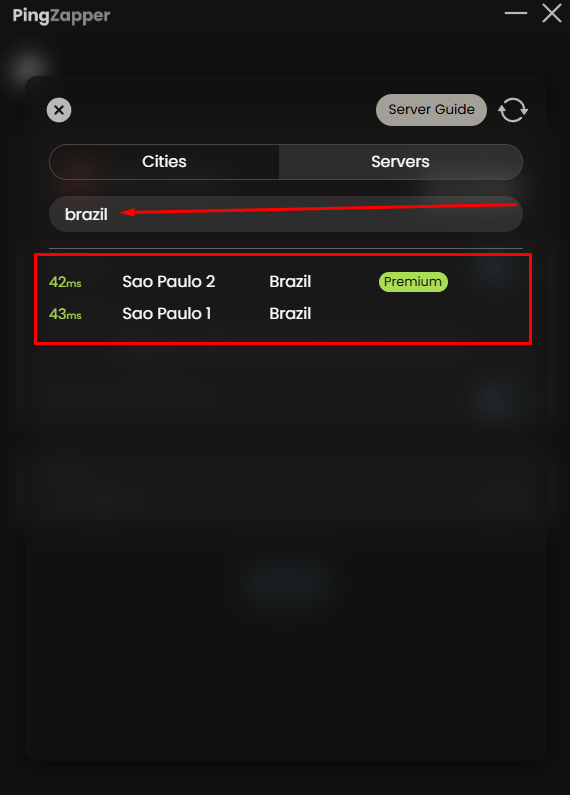
<p align="center"><strong>6.  buscar "Brazil" y selecciona cualquier servidor de Sao Paulo.</strong></p>

<figure><img src="https://798805090-files.gitbook.io/~/files/v0/b/gitbook-x-prod.appspot.com/o/spaces%2FrJDlp3lH955JOt7251Y5%2Fuploads%2FETxpx2eZVAglUPQYMOWb%2Fimage.png?alt=media&#x26;token=318ba74f-c820-4bd5-ae9a-eb3123acf732" alt="" width="428"><figcaption></figcaption></figure>

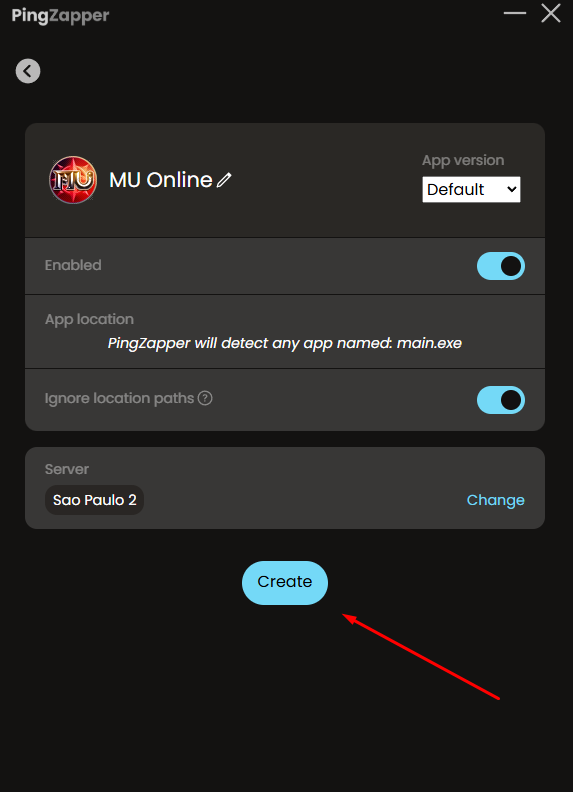
<p align="center"><strong>6.  Presionar el boton Create</strong></p>

<figure><img src="https://798805090-files.gitbook.io/~/files/v0/b/gitbook-x-prod.appspot.com/o/spaces%2FrJDlp3lH955JOt7251Y5%2Fuploads%2FrW0DexFmQ5YUsVJz54NX%2Fimage.png?alt=media&#x26;token=e8f14e66-b7d4-4902-9bbf-fe410782ae3d" alt="" width="430"><figcaption></figcaption></figure>

**7. Encender el PingZapper dandole al boton de PinZapper ON, tiene que quedar marcado como la foto.**

<figure><img src="https://798805090-files.gitbook.io/~/files/v0/b/gitbook-x-prod.appspot.com/o/spaces%2FrJDlp3lH955JOt7251Y5%2Fuploads%2FDVPm3pUJXLqCBF3UADII%2Fimage.png?alt=media&#x26;token=b647a0d2-6c44-402f-a5a6-6f564bf7eee3" alt=""><figcaption></figcaption></figure>

<p align="center"><strong>8. Entrar al juego sin cerrar PingZapper.</strong></p>

<br>